
We assume you are here because of your recent purchase of our Kit. The below process will help you ease into the features of the same and hopefully get you a jump start into the world of learning.
If you are interested in the Course offered and an Introduction on the kit itself, pls proceed to www.dynamicedu.co.in/botdulars
As you may have noticed the kit comes with 3 sensors alone that are packed separately, just for convenience in packaging and also to serve as a reminder on how ‘modular’ the platform is. You will need to attach each of them if you wish to run programs associated with them. Kindly note that most sensors have markings on their pin-out for Voltage, I/O (Input/ Output data) and Ground.
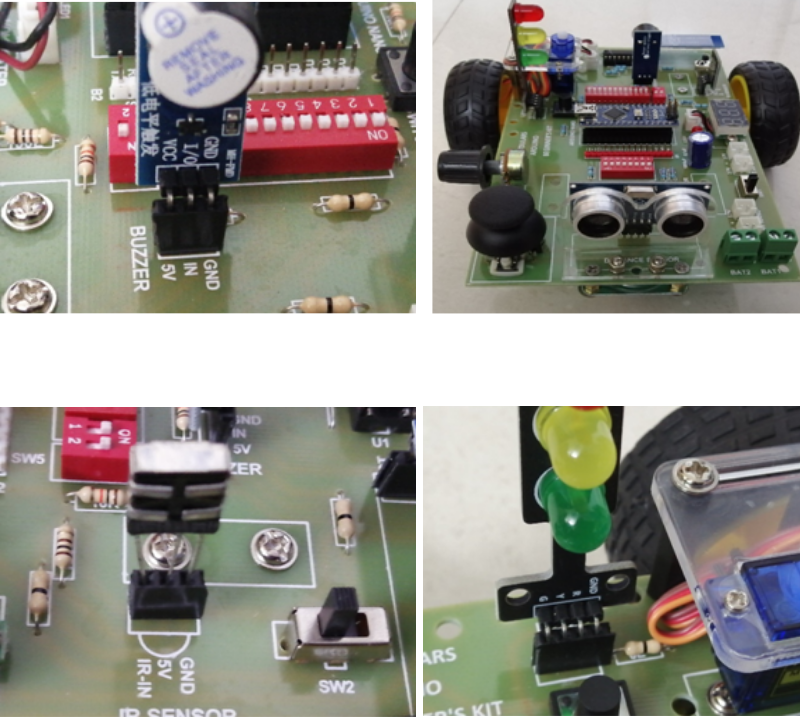
- The traffic lights – are an LED connection to respective digital pins and can be placed vertically as shown below.
- The buzzer – similarly falls in place onto the berg strips as shown below.
- The Infra-red sensor – that needs to face inwards as shown below.
A fully assembled kit is also shown alongside.
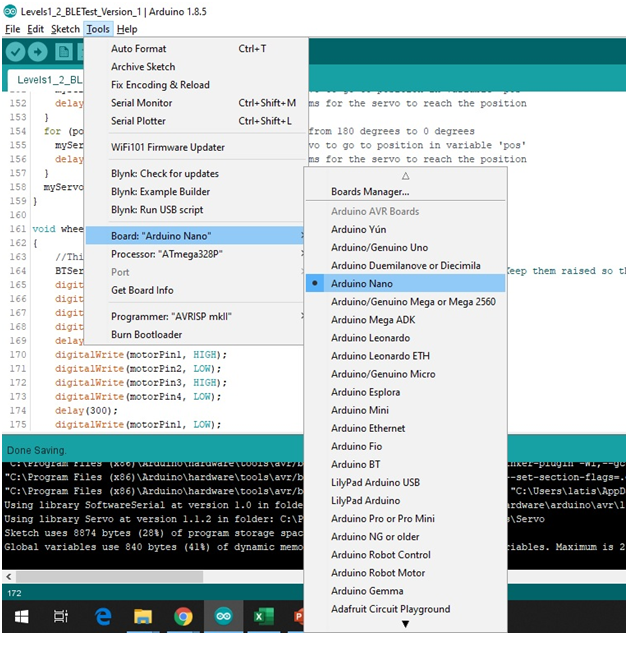
Once the USB cable is connected between the Computer and the Arduino Nano (within the kit) you will notice that a port number gets assigned to the connected device that needs to be configured within the IDE before you can start uploading the code samples given on the Github site. You will also have to make sure the board is identified as an Arduino Nano to proceed further.
www.github.com/botdulars/level2
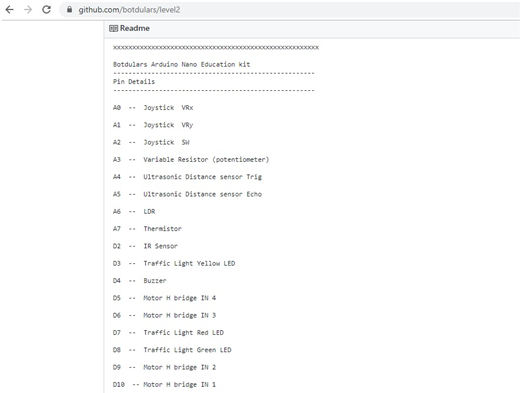
Iterating through the Programs You will notice that the IDE itself comes with a large collection of Sample programs just like we have given a few on our Github link. Before you start with the programs it is important to understand or learn the basics of Arduino over the Internet from online tutorials or Youtube videos. You will then understand the significance of the Pin details as given on the Github link, called out below.
The pdf file at https://github.com/botdulars/level2/blob/master/Programs%20and%20exercises_Dynamic_Edu_v2.pdf
Also gives you a walk through of the sample programs called out in the Github link above.
a. There is a possibility that the Nano supplied operates on the older version of a bootloader. In such cases, pls do the following.
i. Open the Arduino IDE
ii. Go to Tools -> Processor and within that choose ATMega328p (old bootloader)
This should help you upload the code without further avrdude messages or warnings.
b. Pls make sure that SW2 (Switch 2) on the board is turned OFF while uploading Code.
The most common reasons are listed below. Pls review your connection, switch state and correct as necessary.
a. Bluetooth switch SW-2 being off. This needs to be ON for any Bluetooth device to connect to the board.
b. The last 2 jumper switches- adjacent to SW-5 marked on the board could also be OFF that hinder Bluetooth communication between the module and the Arduino.
c. If you have issues in not being able to upload your code, the reasons are the same, in that- the SW2 needs to be OFF when the code is uploaded and back ON when it needs to RUN.
A voltmeter is provided mainly for this purpose. There are 2 sources for power in the board. One of them explicitly says “Motor”. The board is designed in such a way that the motor draws power from this external source. So, either –
i. The power connection to the Motor does not have a Battery at the other end (a 9v connector is provided). OR
ii. The voltage is below the required limit to move the arms of a Servo. We have observed that most times, when the voltage reads below 6v (consequently a reduced amperage) the Servo finds it hard to show a “movement”.
Similar to the above 2 power connections spoken about, we do have options for you to plug 3.7 batteries through DC connectors to these junctions. It was a ‘future friendly’ decision to hang those ports into this board just so that we’re able to handle larger load when we get there.
SW1- has the purpose of turning the Arduino ON and OFF through external power (from the battery option provided) while SW-2 – as discussed above, terminates the connection to the Bluetooth module.
While every single kit has been tested, we have noticed that the IR readings sometimes don’t appear mainly due to –
i. The IR sensor having to face INWARDS; similar to the image below. Most times people tend to put them other way (wherein the ground or signal points are not connected appropriately to the berg strip ends).
ii. The berg strip itself may have 4 end points than 3. In such a rare case, pls use the bottom 3 pins, closer to the GND symbol mentioned on the board, facing inwards.
iii. The remote has to show it’s IR rays to the inner side of the sensor.
a. The likely cause is the incorrect connection between the servo plug and the board. Pls make sure the 3 pins are connected to the Servo plug appropriately as the wrong connection could also lead to issues with current getting leaked across the board.
b. Alternatively if you had turned off any of the Jumper pins that are internally wired to the Servo that may result in the same as well. Servo is connected to D11 – which denotes Digital Pin 11 on the board.
c. Lastly – there is the possibility that you haven’t powered the motor explicitly. A separate power source has been provided for these motors (to reduce the drag on the Nano being a power source in itself) and a suitable 9v batter needs to be connected before the DC motor or the Servo motor can be made to run.